
Your first project
This tutorial shows how to turn an XML document into a web page, a PDF and an e-book, right in your browser. It takes about ten minutes. You do not need to install anything, and you do not need to know XSLT or any programming language: the rules for how each element should look are written in a document of their own, called an ODD.
The examples use TEI. OPM Studio works the same way for DocBook and JATS, and ships ready-made rules for all three; for any other XML format, you write the rules yourself.
By the end you will have:
- a small project with an XML document in it
- an HTML version of that document
- your first change to the way the output looks
- a copy of the project on your own computer
Before you start
All you need is a recent web browser. Chrome, Edge, Firefox and Safari all work.
Open OPM Studio. The very first visit downloads the processing environment, which may take a minute. Later visits load from the browser's cache and are much faster, even without an internet connection.
1. Create a project
A project is simply a folder which holds your XML documents, the ODD with your rendering rules, and the templates which frame the output. OPM Studio keeps it in your browser.
On the project page, type my-edition into the field Project name. Then click the TEI card under New empty project.
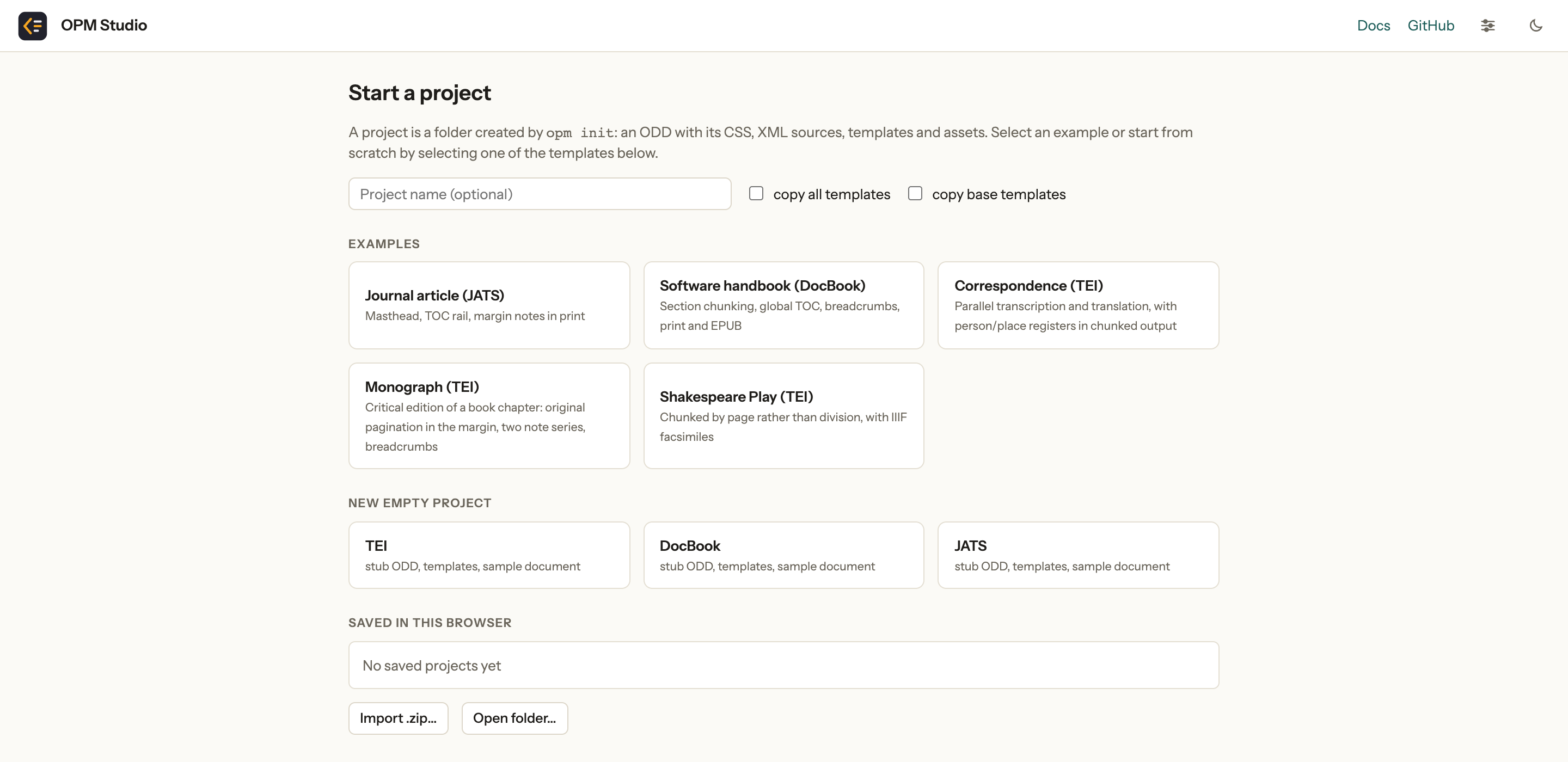
OPM Studio creates the project and opens it. On the left you see its files:
| Path | What it is for |
|---|---|
data/ | your XML documents. There is already a small sample.xml in it. |
odd/custom.odd | your rendering rules. It starts out empty and inherits sensible defaults for all common TEI elements. |
templates/ | the page layout and stylesheet wrapped around your text |
opm.toml | the project settings |
extensions/ | a place for your own XPath functions, written in Python. You can ignore it for now. |
If you have worked with the opm command-line tool before: this is exactly the folder opm init my-edition --vocabulary tei would create.
2. Look at the result
The sample document is already open in the middle, and the output pane on the right shows it transformed into a web page: a title and two short chapters.
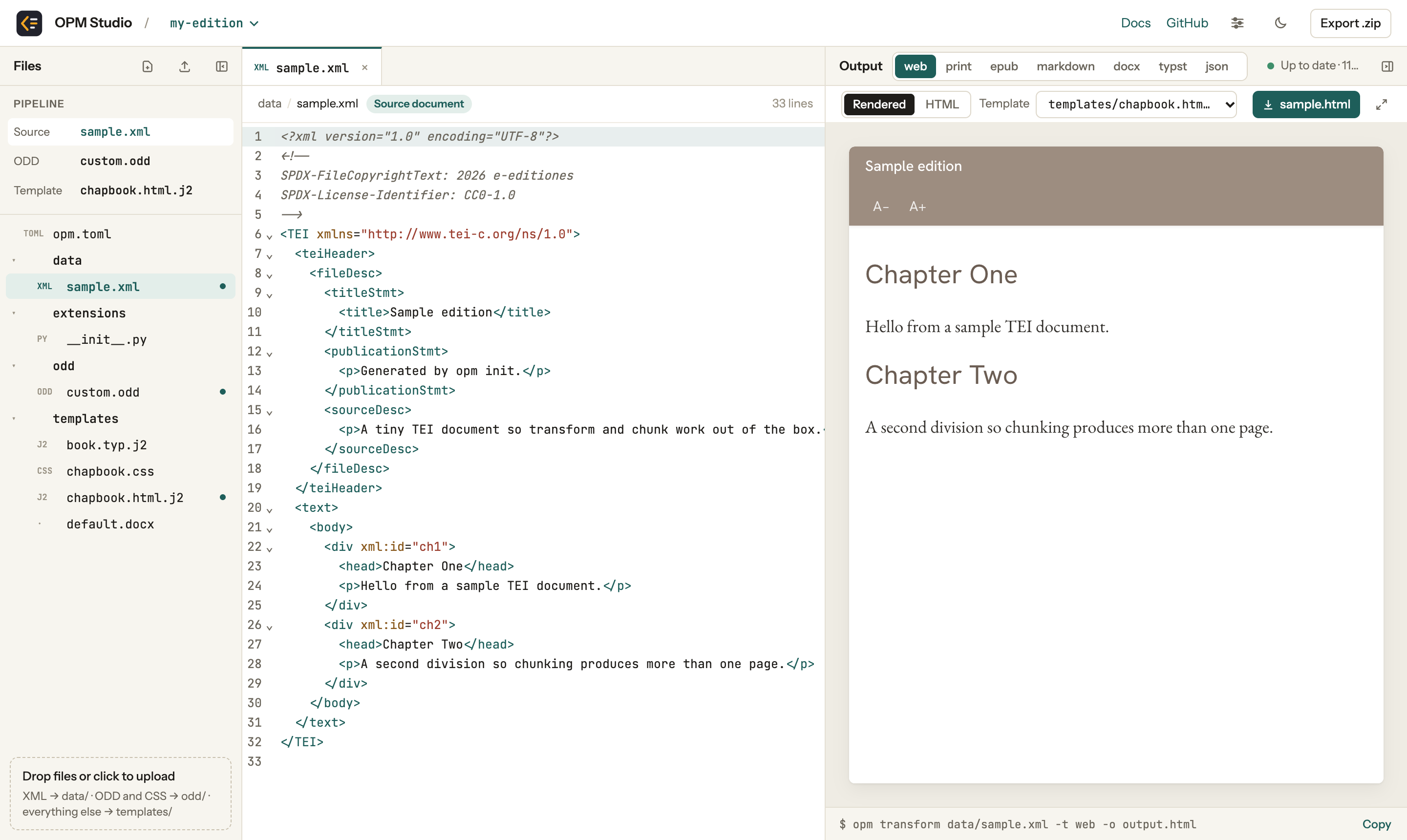
The buttons at the top of the output pane select the output format. Click print to see the same text laid out for printing, then typst to get a PDF. The first time you do this, OPM Studio downloads the PDF compiler, so give it a few seconds. Click web to come back.
3. Edit the document
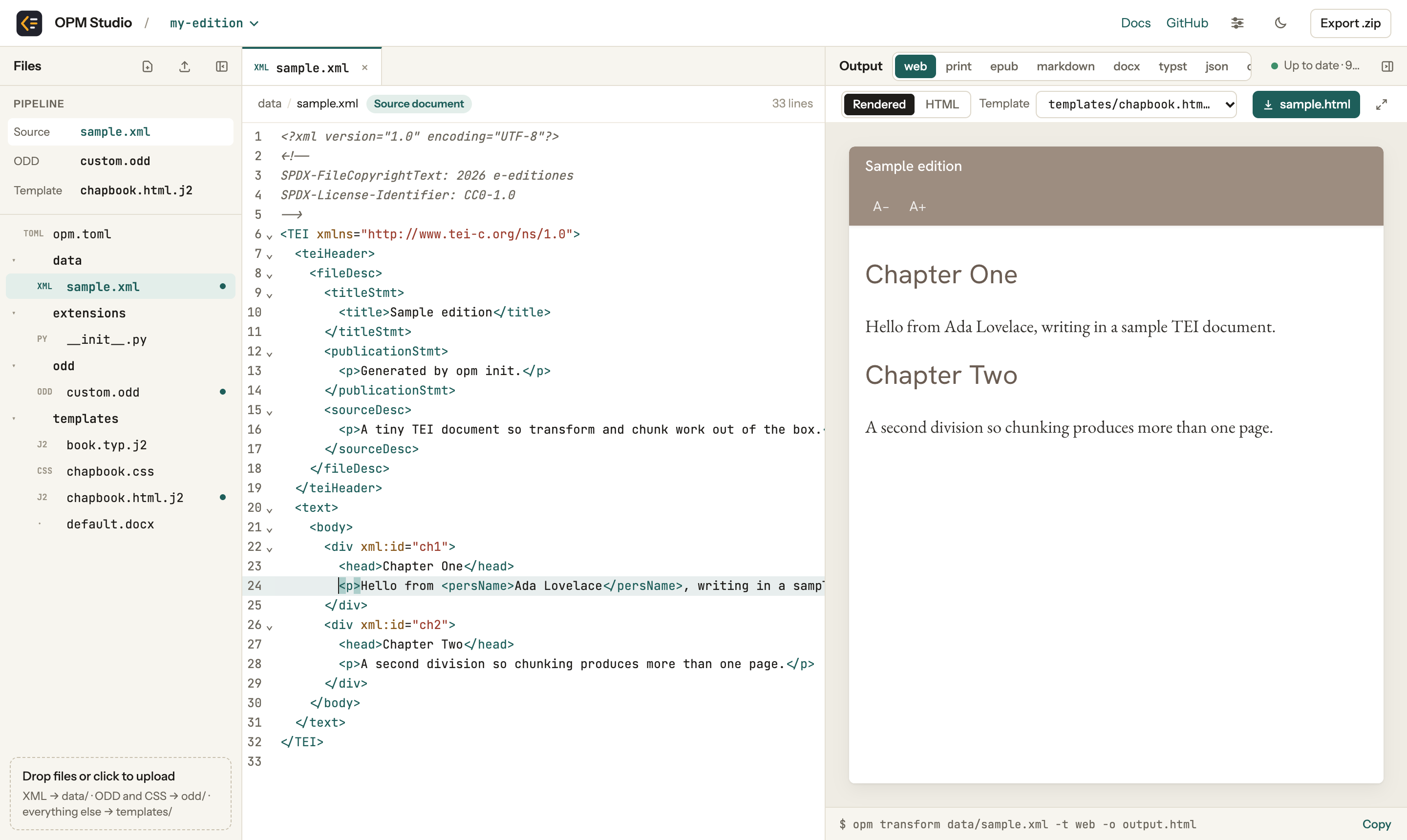
Let us give the transformation something to work on. In the sample document, find the line
<p>Hello from a sample TEI document.</p>and change it to
<p>Hello from <persName>Ada Lovelace</persName>, writing in a sample TEI document.</p>You do not have to save: a moment after you stop typing, the output on the right is updated. The name is there, but looks just like the surrounding text. Let us change that.
4. Change how something looks
Suppose you want person names to appear in italics and in dark red.
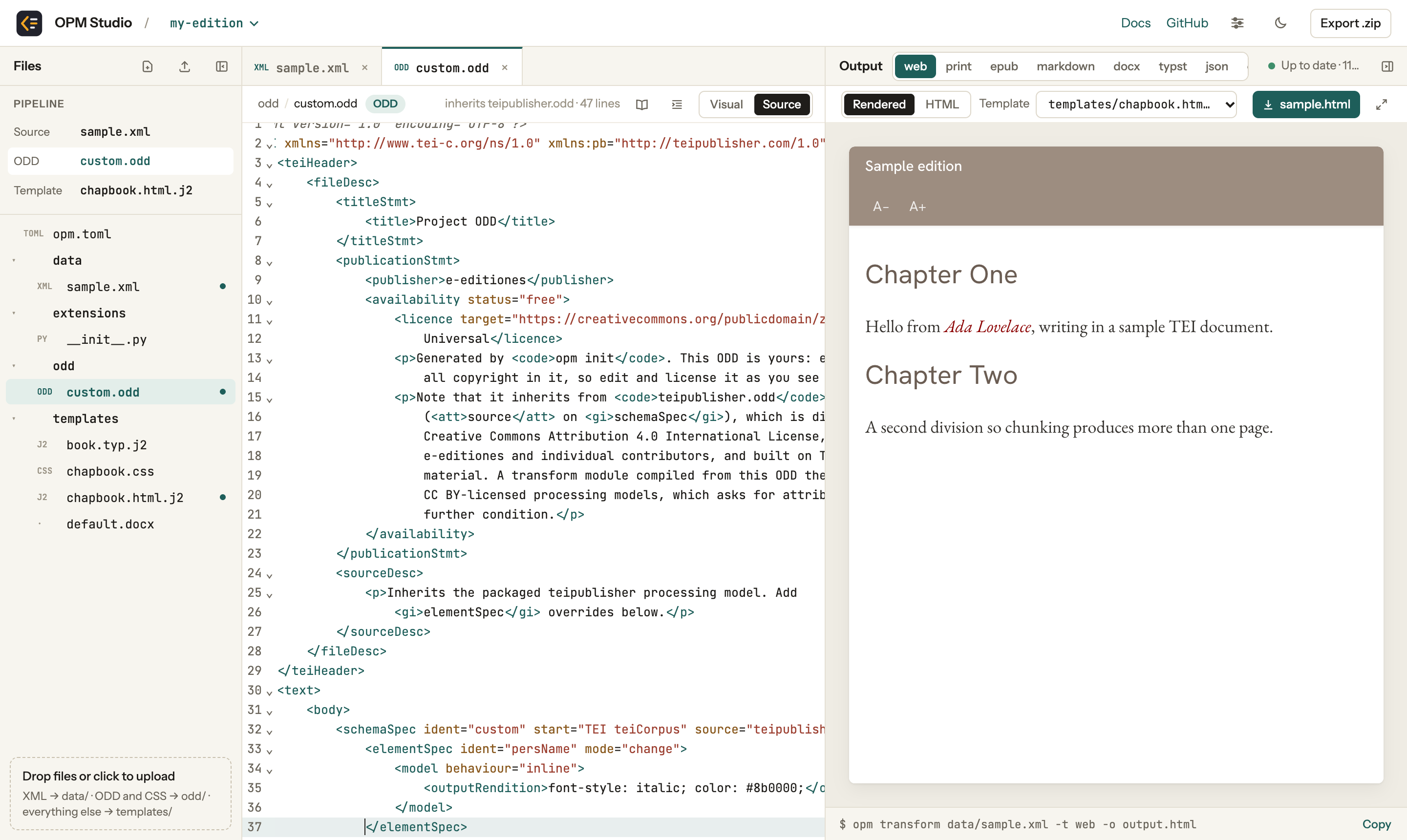
In the Pipeline box above the file list, click the entry ODD. This opens odd/custom.odd in the editor. OPM Studio shows the ODD in a visual editor, but for this first change we will look at the XML itself. Click Source at the top right of the editor.
Find the schemaSpec element, which is still empty apart from a comment, and add an elementSpec for persName inside it:
<schemaSpec ident="custom" start="TEI teiCorpus" source="teipublisher.odd">
    <elementSpec ident="persName" mode="change">
        <model behaviour="inline">
            <outputRendition>font-style: italic; color: #8b0000;</outputRendition>
        </model>
    </elementSpec>
</schemaSpec>
The name in the output turns italic and red.
Let us look at what we wrote:
elementSpec ident="persName"selects the element we want to change. In a DocBook or JATS project, you would pick one of their elements instead, for exampleemphasisoritalic.mode="change"means we only replace its rendering rules and keep everything else from the default ODD.model behaviour="inline"says that a person name should run along with the surrounding text, rather than start a new block like a paragraph would.outputRenditionholds the styling, written in CSS.
Now click Visual to switch back. On the left you see persName, the only element your ODD defines so far. On the right is the model you just wrote, shown as a card with all its fields. (If the card is closed, click its title to open it.) Scroll down to Rendition CSS and change the color, e.g. to #1e5e5a. The output follows along again.
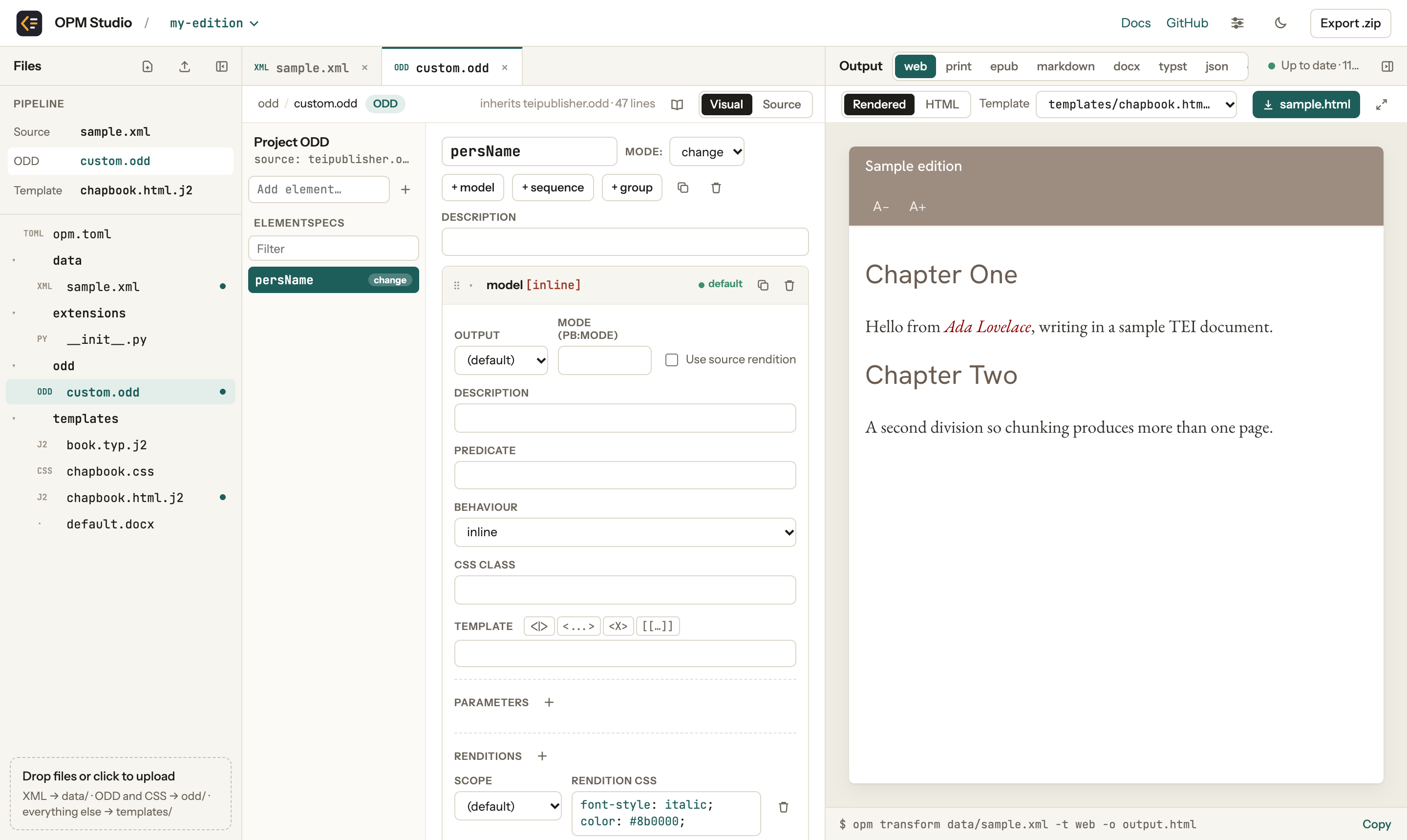
The visual editor and the XML are two views of the same file: use whichever you find more comfortable.
This is the general pattern for all changes: find the element, decide on a behaviour (paragraph, heading, inline, note, link, …), and add styling where needed. The TEI Publisher documentation explains the available behaviours and includes a short tutorial on writing processing models.
One set of rules for all formats
Click print or typst again: the names are italic there as well. The same ODD is used for every output format, so your change to persName applies to all of them.
5. Add your own document
Now try one of your own TEI files. Drag it from your computer onto the OPM Studio window. It is placed in the data folder and becomes the document being transformed. Most documents display reasonably well right away, since the default rules cover many of the common elements: divisions, headings, paragraphs, notes, lists, tables, figures, verse, drama, and many more.
To go back to the sample, click sample.xml in the file list.
6. Take it with you
Your project is saved in the browser as you type. To keep a copy elsewhere, click Export .zip, the download arrow in the top bar. The zip contains an ordinary opm project, which you can bring back into OPM Studio later, share with a colleague, or run with the opm command-line tool.
To save the output itself, use the download button above the output. For epub and docx, which cannot be previewed in the browser, this is the only option, so click one of them now and open the result in your e-book reader or word processor.
The line at the bottom of the output pane shows the opm command which produces the same result outside the browser.
Next steps
- Open one of the Examples on the project page to see what a finished project looks like, and try the chunk format to turn a long document into a website of linked pages.
- Read the documentation for everything else OPM Studio can do, from uploading files to keeping a project in sync with a folder on your disk.