
Documentation
This page describes the parts of OPM Studio and what you can do with them. If you would rather learn by doing, start with the tutorial Your first project and come back here later.
Open the app
Go to OPM Studio. The first visit downloads the processing environment, which can take a minute. Later visits load from the browser's cache and also work offline.
Project page
The project page is where you create, open and import projects. It opens when no project is loaded, or when you choose All projects… from the project menu.
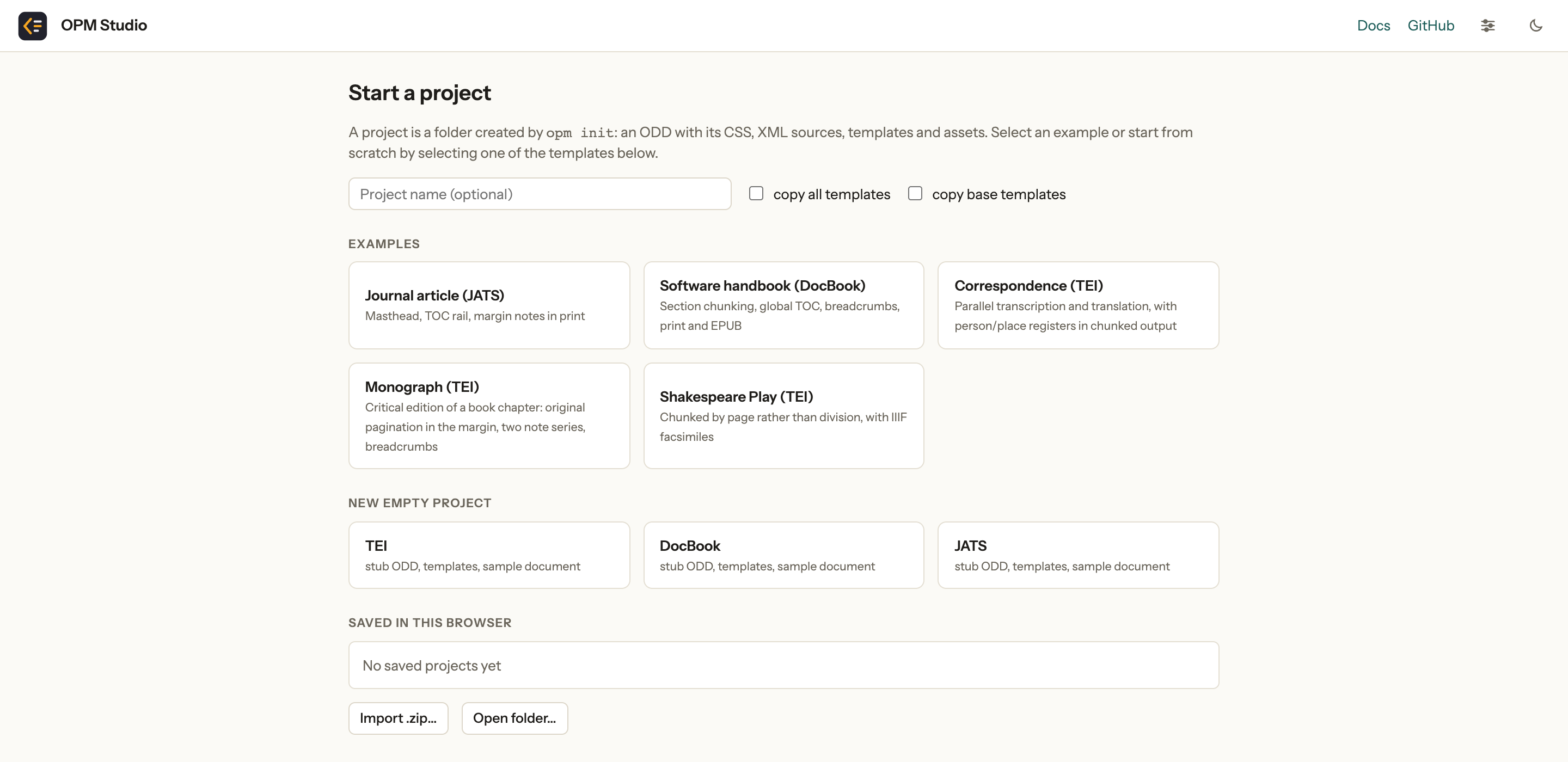
Examples creates a project from one of the bundled examples. New empty project creates one with a minimal sample document, the standard templates and an ODD which inherits the default rules for TEI, DocBook or JATS. Enter a name first if you like; otherwise one is chosen for you.
Two options control which templates a new project gets. Copy all templates adds the optional templates shipped with opm, not only the one the project defines as default. Copy base templates also adds the base template for the basic layout and associated stylesheets.
Saved in this browser lists your projects. Open reopens one, ✕ deletes it. Import .zip… turns an exported project into a new one, and Open folder… opens a project folder on disk (see Directory synchronization).
Projects are stored in the browser and saved as you type. Clearing the browser's site data removes them, so use Export .zip (the download arrow in the top bar) to keep a copy. The zip is an ordinary opm project: unzip and run it with the opm command-line tool, or bring it back with Import .zip….
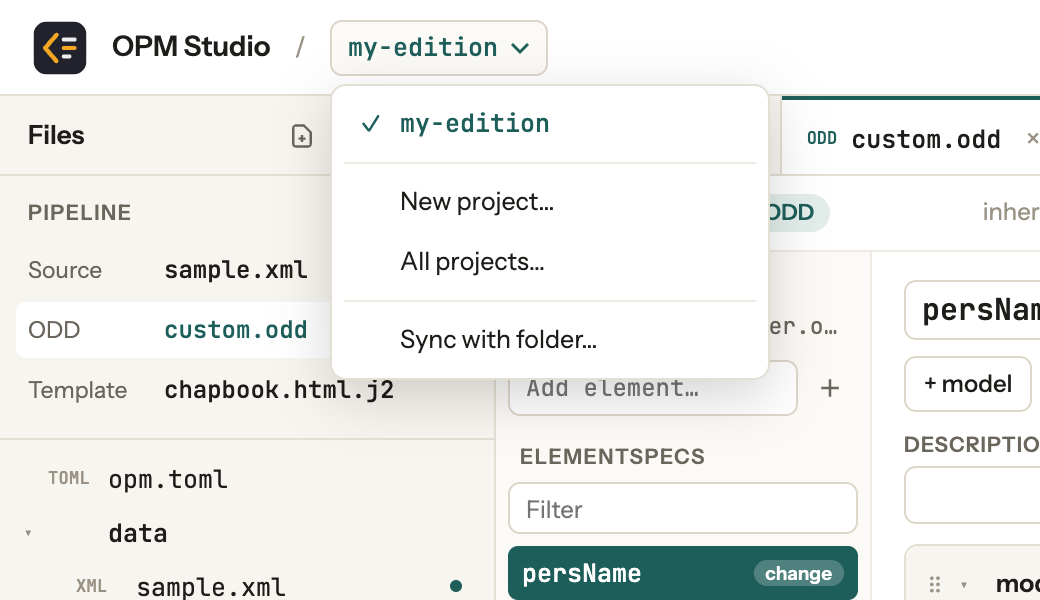
While a project is open, click its name in the top bar to switch to another project or to return to this page.
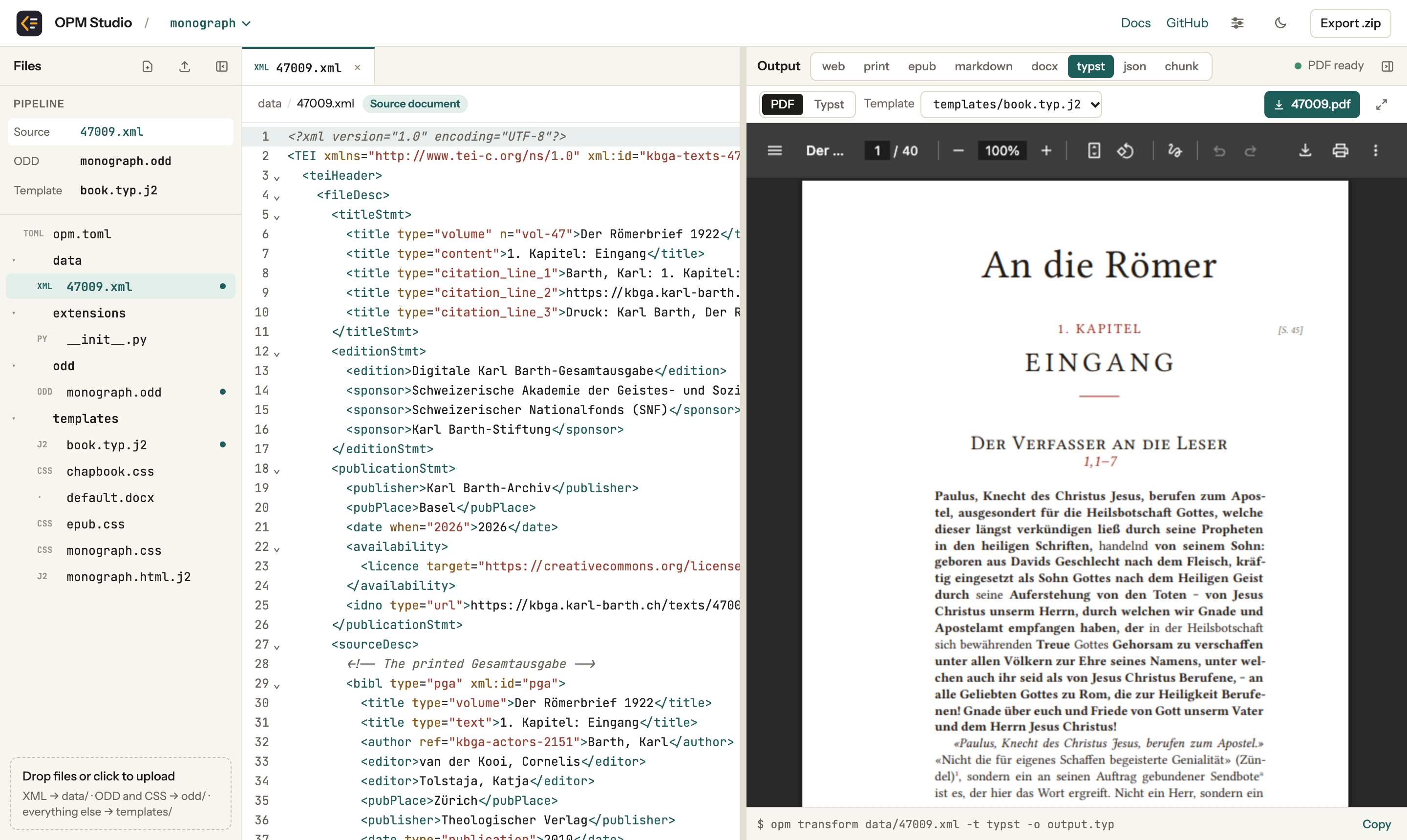
Key folders and files
Every transformation is based on at least three inputs:
- one or more XML sources in folder
data - an ODD, which defines the transformation rules (folder
odd) - a template containing the outer frame into which the content is rendered (folder
templates)
Each of those may come with auxiliary files, e.g. CSS stylesheets or assets like images.
To keep things simple, the folder structure in OPM Studio is fixed. Uploading a file will automatically sort it into the corresponding folder.
A fourth file, opm.toml, ties everything together. It names the ODD to use, the template for each output format and a few other settings. OPM Studio changes it for you when you pick another template or make an uploaded ODD the project's ODD. opm.toml may also contain more complex configurations. Refer to the opm documentation for the full list of options.
The editor window
The editor window has three parts: the files on the left, the editor in the middle and the output on the right. The output pane shows the open XML document transformed with the project's ODD.
Above the file list, the Pipeline box shows which files take part in the current transformation: the source document, the ODD and, for formats which use one, the template. Click an entry to open the file. The file list marks the same files with their role as well.
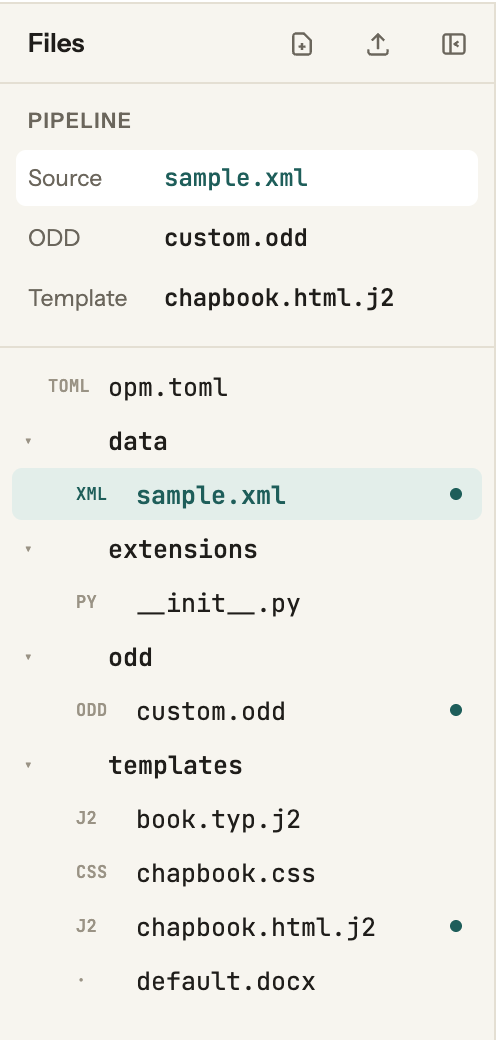
Clicking an XML file in the data folder opens it and also makes it the document being transformed. There is no need to save: the output is refreshed a moment after you stop typing.
Output formats
Use the buttons at the top of the output pane to switch formats. web shows a single HTML page, print an HTML page laid out for printing (paged on screen with Paged.js; Print opens the browser print dialog), and typst a PDF. Formats that cannot be previewed, such as epub and docx, offer a download instead.
The chunk format is based on web, but produces complex output: it paginates one or more source documents, therefore producing an entire website of linked pages instead of just a single output.
For the formats which use a template, the Template menu below the format buttons lets you choose another one from the templates folder.
Changing the ODD
The ODD is where the rules live. It says, element by element, how the XML should be turned into output: whether a <p> becomes a paragraph, a <head> a heading, a <note> a footnote, and how each of them should look.
Open the ODD by clicking it in the Pipeline box. OPM Studio shows it in a visual editor, so you do not have to write XML yourself. If you prefer to work with the XML directly, switch to Source at the top right of the editor; Visual takes you back. Both views edit the same file, and you can switch between them at any time.
On the left of the visual editor is the list of elements your ODD defines rules for. A new project starts with an empty list, because its ODD inherits all rules from one of the default ODDs shipped with opm. You only need to add the elements whose output you want to change. Type the name of an element into the Add element… field and press Enter. If the default ODD already has rules for that element, they are copied over, so you can adapt them rather than start from nothing. Use the Filter field to find an element in a long list.
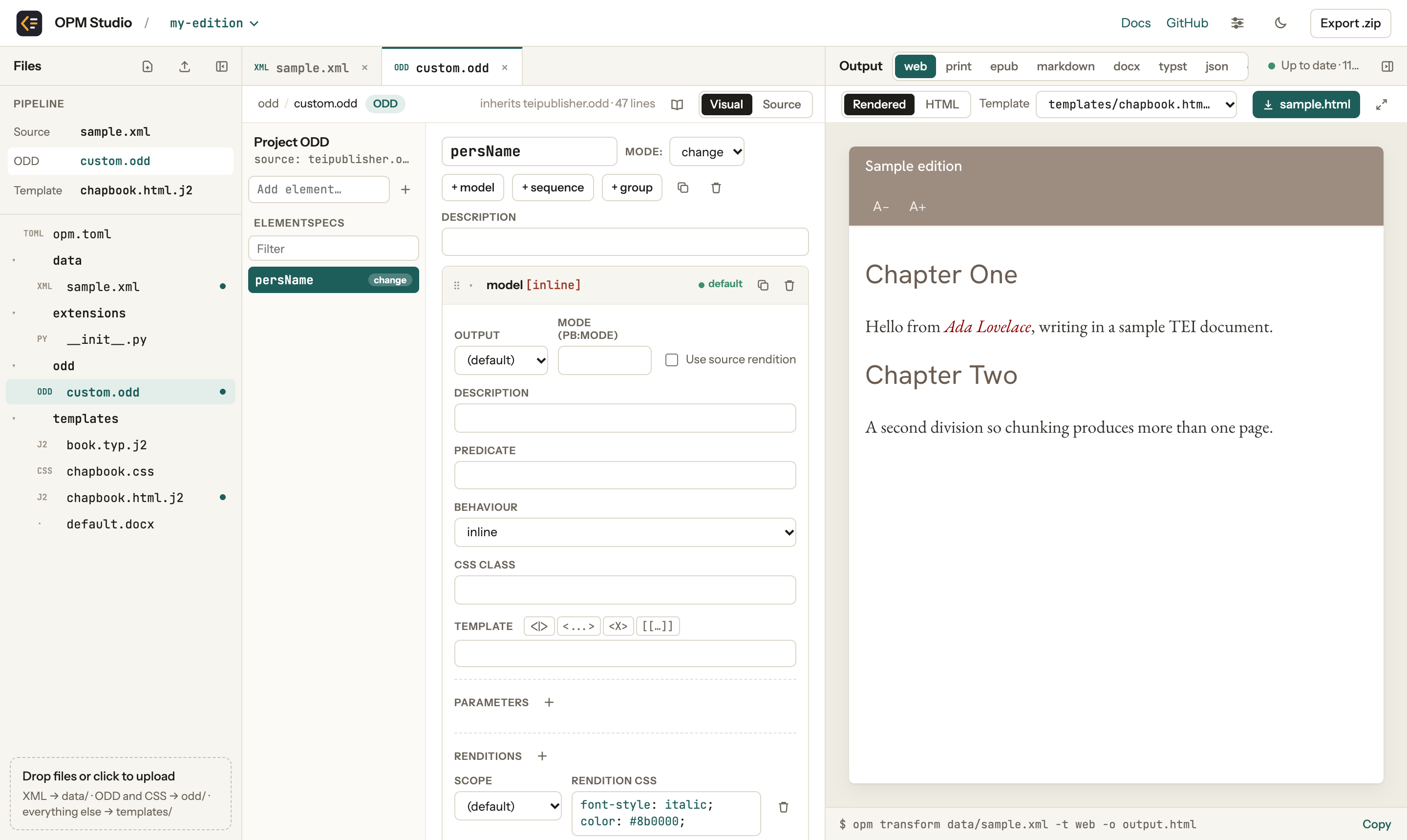
Selecting an element shows its rules on the right. In ODD terms these are called models. Each model has a behaviour, which says what kind of thing the element becomes: a paragraph, a heading, an inline piece of text, a note, a link, a list and so on. A model may also have:
- a predicate, an XPath expression which limits the model to some occurrences of the element, e.g.
@rend='italic' - an output, which limits it to one output format, e.g.
printorweb - parameters, which pass content or values to the behaviour
- renditions, which hold the styling, written in CSS
When an element has several models, the first one whose predicate matches wins. Drag the cards to change their order. The model marked default is the one that applies to the current output format whenever no model above it matches.
The mode of an element (shown next to its name) controls how your rules combine with the inherited ones. change replaces the inherited rules for this element, while add defines rules for an element the default ODD does not cover yet.
As with the XML, your changes show up in the output a moment after you make them. The book icon above the editor builds a small website documenting the ODD, which opens in the output pane. In the source view, a second button next to it tidies the indentation of the ODD.
For a first hands-on, continue with the tutorial. To learn more about the ODD specification and extensions implemented by OPM, refer to the following sources:
- Gentle Introduction to TEI Publisher explains core concepts in the tutorial
- TEI Publisher Reference Manual
- the OPM documentation explains all features supported by
opmas well as the differences between implementations
File upload
To add files to a project, click the upload button above the file list, click the drop area below it, or simply drag files from your computer anywhere onto the window.
OPM Studio sorts what you upload into the folder where opm expects it: XML documents go to data, ODDs and the CSS files they refer to go to odd, RELAX NG schemas (.rng) go to schema, and everything else, such as templates, stylesheets and images, goes to templates. If you want a file to end up somewhere else, drop it onto a folder in the file list instead; dropped onto a file, it lands next to that file.
When you upload a new ODD, OPM Studio asks whether it should become the project's ODD. When you upload a schema, it asks whether the editor should use it for autocompletion (see Autocompletion and schemas). When you upload an XML document, it becomes the document being transformed. A single .zip file is treated differently: it is imported as a new project of its own (see below).
To create an empty file instead, use the new-file button next to the upload button.
Directory synchronization
In Chrome, Edge and other Chromium browsers you can also open a folder on disk with Open folder…. The project then stays in sync with that folder while the page is open.
The folder must be an opm project, i.e. contain an opm.toml as created by opm init. To link a project you already have in the browser to a folder, choose Sync with folder… from the project menu. If the folder is not empty, its files are merged with the project.
Changes flow both ways: edit a file in OPM Studio and it is written to disk; edit it in your favourite editor and OPM Studio picks it up. This lets you combine the live preview with the tools you are used to, and keep the project under version control with git.
While a folder is linked, the top bar shows its name and the state of the sync. If a file has changed both in the browser and on disk since the last sync, OPM Studio asks which version to keep, or whether to keep both. After the page has been reloaded, the browser may ask for permission to access the folder again: click the indicator in the top bar to grant it. Stop syncing with … in the project menu unlinks the folder; both the folder and the project stay as they are.
Firefox and Safari do not allow web pages to write to folders, so these options are not shown there. Use Export .zip and Import .zip… instead.
Editing XML
Four commands help with markup. They are available from the editor's context menu (right click; hold Shift for the browser's own menu), by keyboard, and in the ODD editor all but splitting also from the buttons above a template.
| Command | Windows / Linux | Mac |
|---|---|---|
| Surround the selection with an element | Ctrl+E | ⌘+E |
| Select the element around the cursor; press again for its parent | Ctrl+Shift+E | ⇧+⌘+E |
| Split the element around the cursor in two, at the cursor | Ctrl+Shift+Enter | ⇧+⌘+Return |
| Remove the tags of the element around the cursor, keeping its content | Ctrl+Shift+X | ⇧+⌘+X |
The preferences (the sliders icon in the top bar) set the editor's font and size, how many spaces one indentation step takes (4 unless you change it), and whether long lines wrap. They are kept in your browser.
Split element ends the element at the cursor and starts another of the same name, with the same attributes except xml:id, which must stay unique. Use it to break a paragraph in two, for example.
Surround with element asks for the element's name below the text. When the document has a schema, it lists the elements the schema allows at that point, with a short description of each: type to narrow the list, choose with the arrow keys and press Enter. Only elements from the list are accepted. To add attributes, press Tab to complete the name and type them after it, e.g. persName ref="#gorbachev". Without a schema, any name may be typed.
Autocompletion and validation
While you edit an XML document, the editor checks it against its schema and suggests what may come next.
Autocompletion. Type < and the editor offers the elements allowed at that point, in document order: right after <TEI>, only <teiHeader>. Inside a start tag it offers the attributes not yet written, and inside an attribute value the values the schema lists. Each comes with a short description where the schema has one. Between tags, press Ctrl+Space (on a Mac, Option+I works too) to insert a whole element.
Validation. After a short pause in typing, problems are underlined, marked with a dot beside the line number, and explained when you point at them, for example <div> is not allowed here or "maybe" is not a valid value for @cert.
Using a RELAX NG schema
For each XML document, OPM Studio looks for a schema in this order:
An
<?xml-model?>instruction in the document naming a RELAX NG schema in the project. The path is relative to the document:xml<?xml-model href="../schema/letters.rng" type="application/xml" schematypens="http://relaxng.org/ns/structure/1.0"?>Locations pointing at a web address (
https://…) are skipped: the web browser is not allowed to load schemas from external locations.The
[editor]section ofopm.toml, naming a schema for every document in the project that has no<?xml-model?>of its own. It does not apply to ODD files. The path is relative to the project folder:toml[editor] schema = "schema/letters.rng"TEI, DocBook and JATS documents get the complete TEI P5, DocBook 5.2 and JATS 1.3 Archiving (with MathML 3) schema respectively, recognized by the document's namespace, root element or doctype.
Other documents are neither checked nor completed.
Using your own RELAX NG schema
Upload the .rng file. OPM Studio puts it into the schema folder and asks whether to use it as the project's schema.
A few things to keep in mind:
- The schema must use the XML syntax of RELAX NG (
.rng). The compact syntax (.rnc) and XML Schema (.xsd) are not read. Tools such as trang convert both to.rng. - A schema split over several files, joined with
includeorexternalRef, needs all of them. Upload them together, so they land in the same folder and the relative links between them still work. - For a customized TEI, export the RELAX NG from your ODD, for example with Roma or TEIGarage.
- A large schema takes up to a second to read the first time a document using it is opened. The editor stays usable meanwhile; checks and suggestions start once the schema is ready.
Limits
- A syntax error, such as a tag that is not closed, is reported on its own: the checks against the schema stop there until it is fixed.
- Schematron rules, whether in a separate file or embedded in the schema, are not checked.
- Suggestions depend on everything before the cursor. If the cursor is inside an element that is not allowed at its position, for example a
<hi>placed directly in a<div>, or a<text>that comes before the required<teiHeader>, the editor cannot suggest anything there until that error is fixed. Errors in elements that are already closed, such as an unknown element or an invalid attribute value, do not affect suggestions further on.